How to automatically close inactive tabs in Chrome
TidyTabs can automatically close Chrome tabs after you have not viewed them for a period you choose. Set the idle limit in Settings, turn on Auto-Close, and use History to reopen pages it closes.
Choose an idle limit
- Install TidyTabs and open Settings.
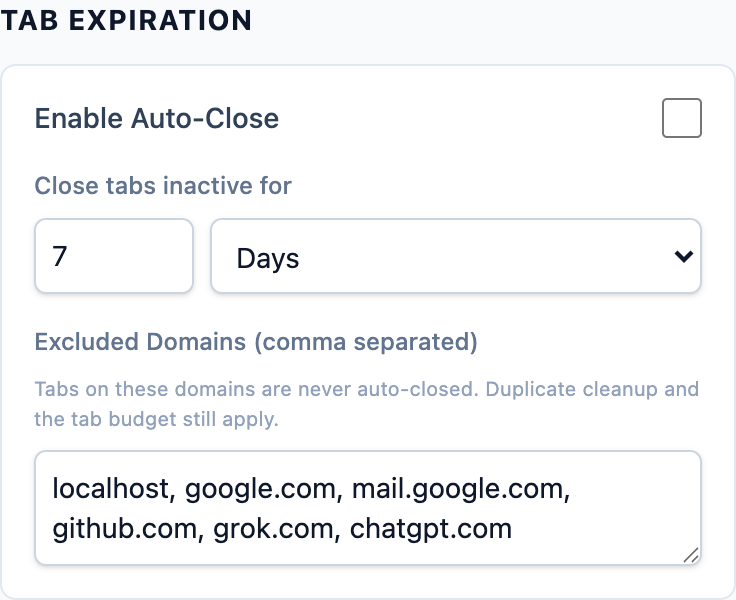
- Scroll to Tab Expiration. Under Close tabs inactive for, enter a number and choose Minutes, Hours, or Days. The initial setting is seven days.
- Review Excluded Domains and add any sites that should be left out of auto-close.
- Turn on Enable Auto-Close. If existing tabs are already past your chosen limit, review the confirmation showing how many would close now.
- Return to Overview. The Auto-close card shows Next tabs to close and their remaining time.
Changes to the number and unit are saved when you enable the feature or select Apply. If you shorten the limit while auto-close is running, TidyTabs asks for confirmation before immediately closing tabs newly past the limit.
What does inactive mean?
The idle timer measures time since you last viewed a tab. Viewing it again resets its age. TidyTabs checks for eligible tabs once a minute, so a tab closes on a check after it reaches the limit.
For example, a two-day limit makes an ordinary tab eligible after two days without viewing it. A page being active in a window, kept, or otherwise protected changes whether it can close.
Keep important pages open
Auto-close skips active tabs, pinned tabs, tabs playing audio, kept pages, and tabs in a Chrome tab group. Sites in your excluded-domain list are also skipped.
- For one page, right-click and choose Keep tabs on this page. This also protects that page from tab-budget parking.
- For a whole site, use the right-click Never auto-close option naming the site's domain, or add it to Excluded Domains. Duplicate cleanup and tab-budget parking still apply to excluded sites.
Finish or save form input before leaving a page to expire. Auto-close tracks tab activity, not whether a page contains unsaved work.
Reopen an auto-closed page
Open History in TidyTabs and look under Closed tabs. Choose the reopen icon next to a page to load its address again.
Settings includes Keep closed tabs for, with a default of seven days and options up to 90 days. Older history entries are removed. Restoring a page loads it fresh, so unsaved input and page state may not return.
Turn auto-close off
In Settings, clear Enable Auto-Close. Your existing history remains available for its configured retention period. Duplicate handling and the tab budget each have their own settings and continue to follow the rules you chose.
TidyTabs includes duplicate handling, tab budgets, auto-close, kept pages, and Most popular tabs.
Add TidyTabs to Chrome