How to limit tabs per window in Chrome
TidyTabs lets you set a tab budget for each Chrome window. When a window goes over its budget, eligible tabs you used least recently move into a parked list. You can reopen them yourself or let them return as room opens.
Set your tab budget
- Install TidyTabs and open Settings in the extension.
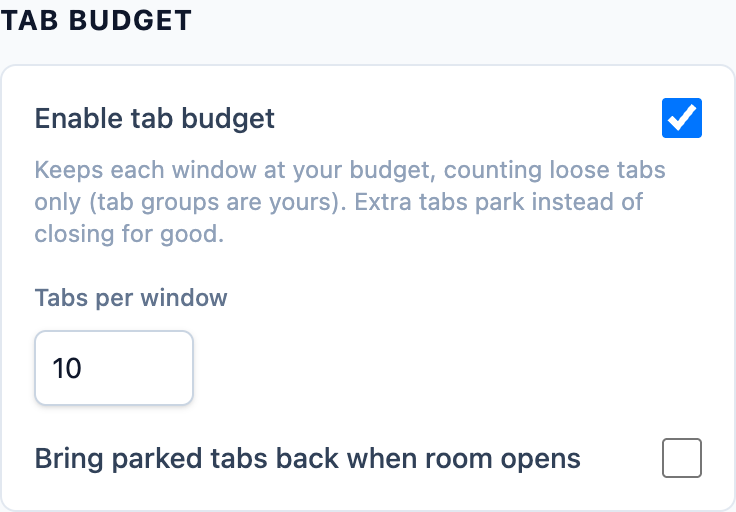
- Find Tab Budget and enter a number under Tabs per window, such as 10.
- Turn on Enable tab budget. Enabling uses the number currently in the field. If the budget is already on, select Apply after changing the number.
- If existing windows need to park tabs, review the Park N tabs now? confirmation before proceeding.
- Choose whether to enable Bring parked tabs back when room opens. Leave it off if you prefer to restore tabs yourself.
In Overview, the Tab budget card shows each window's count and parked total. A window at its limit with tabs parked is working as intended.
What happens to the overflow?
Parking saves a page's address and title, then closes its tab. The page appears under Parked Tabs in Overview. Use its reopen icon to bring it back.
With automatic return enabled, parked tabs reopen in their original window as space becomes available. They return in the background at the left side of the tab strip. A tab you restore yourself opens at the right and receives focus.
If you restore a tab into a full window, another eligible tab can park to make room. If the page is already open in that window, TidyTabs uses the existing copy.
Which tabs count, and which stay open?
The budget counts ungrouped tabs. Chrome tab groups keep their own organization and sit outside the budget.
Active, pinned, audio-playing, and kept tabs are protected from parking. Non-web pages are protected too. A window can remain over its budget when the remaining tabs are protected.
To protect a specific page, right-click the page and choose Keep tabs on this page. It stays on the kept list even after you close its tab. Excluding a site from auto-close is a separate setting and does not protect it from parking.
Find parked tabs after a window closes
When you close a window with parked tabs, its parked list moves to History under a closed-window entry. Expand it to restore individual pages or choose Restore as window.
Restarting Chrome also moves the parked backlog into History because Chrome gives windows new identities. The Keep closed tabs for setting controls how long these closed-window entries remain, with a default of seven days and options up to 90 days.
Restoring loads the page again. It restores the address, not unsaved form input or the previous state of a web app. If auto-close is enabled, a returned tab gets a fresh idle timer and may close later when it reaches that limit.
TidyTabs includes duplicate handling, tab budgets, auto-close, kept pages, and Most popular tabs.
Add TidyTabs to Chrome